

Generative UI for working with agents
Work with agents.Beyond the chat.
Read what it wrote. Try what it built. Point out what needs changing. RambleDesk brings your feedback and the material together, so your agent can continue the task.
macOS Apple Silicon · Windows x64
01 / How it works
The right interface for your part of the task.
Used askUserQuestion? The idea is familiar: an agent asks, you answer, it continues. A workbench extends that approach to reviewing a document, marking an image, or trying a result.
- 01
The agent brings the material
It explains what it has done, what needs your judgment, and how to try it.
- 02
You respond where it matters
Choose, annotate, write, or speak. Your feedback stays connected to the material you mean.
- 03
The task moves forward
Submit when you are ready. In sessions started inside RambleDesk, feedback returns to the same agent conversation.
02 / Workbench examples
Show what you mean.
A few ways to take part, with the material in front of you. Play any six-second demo.
Document review: leave a note beside the text
Select a passage, add a comment or suggested rewrite beside it, then keep reading.
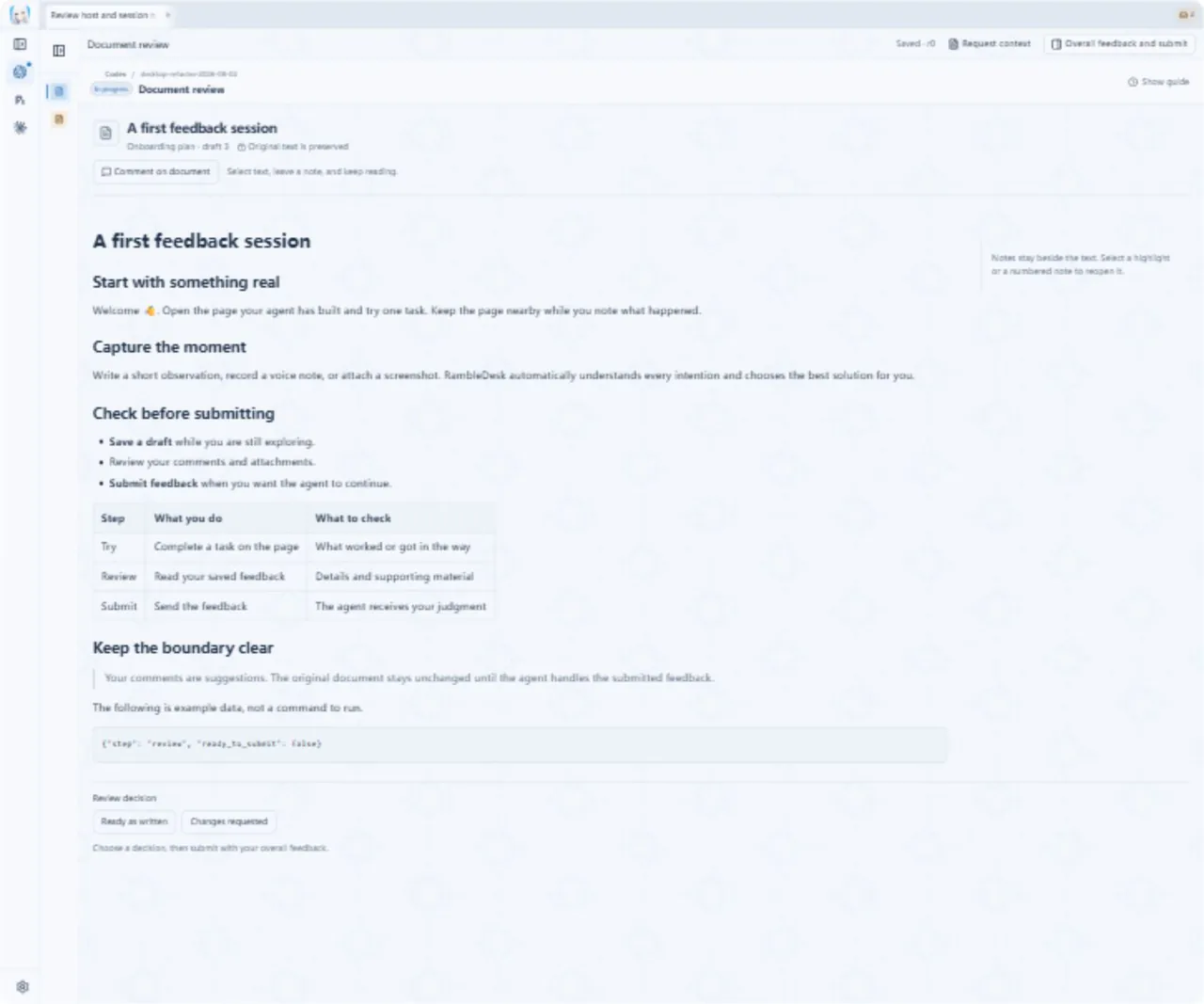
Recorded in the current development UI with demo material. Markdown document review and brainstorming are development previews, not included in the 0.5.0 download.
11 workbenches in the current source
- Questions
- Free feedback
- Markdown document reviewDevelopment preview
- Image annotation & canvas
- Web review
- Terminal tryout
- Drag-to-rank
- BrainstormingDevelopment preview
- Diff review
- Table review
- Audio & video review
RambleDesk is an experiment in applying generative UI to work, using prebuilt workbenches for different collaboration tasks.
03 / Get started
Keep the agent you already use.
Connect your coding agent in RambleDesk. Sign-in and model access stay with the agent.
- Claude Code
- Codex CLI
- Gemini CLI
- 01
Connect your agent
Open Settings → Agents. Follow the prompts to install supported components or connect an agent you already have.
- 02
Give it a task
Start a session, choose your agent and project folder, and describe the goal.
- 03
Try it. Send feedback.
When a request arrives, review the work and submit your notes. Check delivery in the workbench as the conversation continues.
Prefer your existing agent app or CLI? Use an external adapter. How the task resumes depends on the adapter; with Generic MCP, return to the agent to continue.

RambleDesk 0.5.0
Bring your next task.
Feedback is stored locally. Submitting and optional AI tidying share the relevant content with your connected agent or model service.
Upgrading from 0.4.0? Back up the complete data directory first. The old version cannot open an upgraded database. Backup and rollback guide ↗
Installation guide
macOS
Apple Silicon · ad-hoc signed, not notarized. See the installation guide if macOS blocks the first launch.
Windows
Windows x64 · not Authenticode-signed. Verify the download source before allowing it through SmartScreen.
Write first. Speak when you want.
Text needs no extra setup. For voice, download a local transcription model in Settings → Voice and allow microphone access.
AI tidying is optional
It is off by default. Configure a model service in Settings → Post-processing to use it. Your original feedback is preserved.